
Why Is My Phone Battery Draining So Fast? 9 Fixes
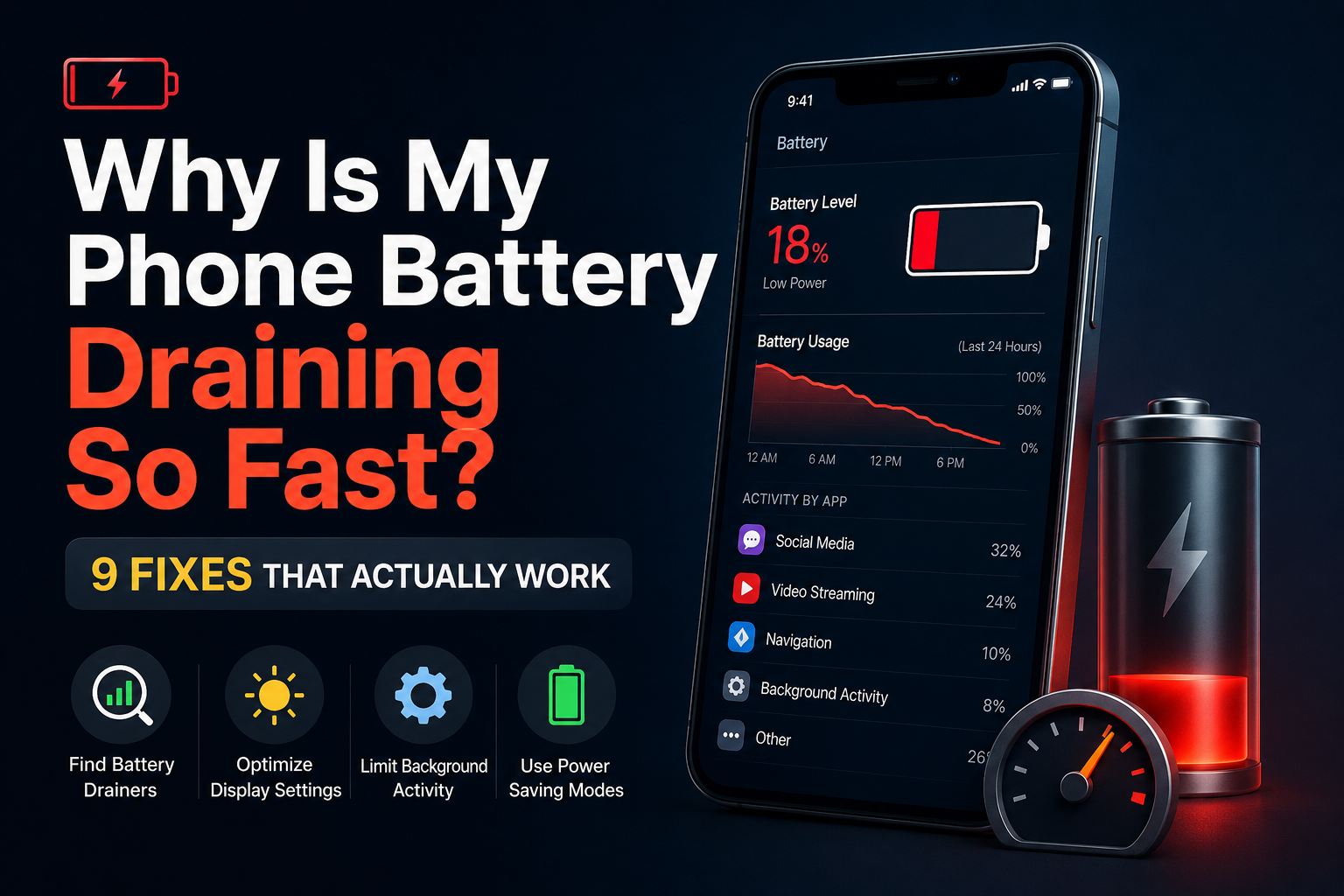
Does your phone lose battery even when you are barely using it? Do you charge it in the morning only to find the battery nearly empty by the afternoon? Before buying a new phone or installing a battery-saving app, there are several things you can check.Your phone battery may drain quickly because of background activity, high screen brightness, weak network coverage, demanding apps, or an aging battery. The good news is that you can often identify the cause using the settings already available on your device.
In this guide, you will learn 9 practical ways to fix fast battery drain on Android phones and iPhones, without relying on questionable battery-saving apps.
Quick Answer: How to Stop Your Phone Battery from Draining Fast
- Check which apps use the most battery.
- Reduce screen brightness and shorten screen timeout.
- Restrict unnecessary background activity.
- Enable Battery Saver or Low Power Mode when needed.
- Update your phone and apps.
- Check battery health if the problem continues.
Start by checking battery usage in Settings. This helps you find the actual cause instead of changing random settings.
1. Find the Apps That Are Draining Your Battery
One of the most effective ways to investigate battery drain is to check your phone’s battery usage report. It can show which apps and system activities consume the most power.
An app using a lot of battery is not automatically faulty. A video editor, navigation app, camera, or game may naturally consume more energy while you use it. The important question is whether its battery usage makes sense for how often you use it.
On Android
- Open Settings.
- Find Battery or Battery Usage.
- Open the battery usage details.
- Look for apps with unusually high battery consumption.
- Check whether they are using power mainly on screen or in the background.
On iPhone
- Open Settings.
- Tap Battery.
- Review the battery usage chart and app activity.
- Check which apps consume the most energy.
- Look for unusually high background activity.
The exact menu names can vary depending on your phone model and software version. If one app consistently uses an unexpected amount of power, review its settings, update it, or limit its background activity where appropriate.
2. Reduce Screen Brightness and Screen Timeout
Your display is one of the main components that can consume battery power. Keeping it extremely bright throughout the day can make your battery run down faster.
Try these simple adjustments:
- Use automatic brightness if it works well on your device.
- Lower the brightness indoors and at night.
- Set the screen to turn off after 30 seconds or one minute of inactivity.
- Disable an always-on display if you do not need it.
- Consider a dark theme if your phone has an OLED or AMOLED display.
Does dark mode really save battery? It can help on OLED and AMOLED displays because dark pixels generally require less power. The benefit depends on your screen technology, brightness, and the apps you use. Dark mode is not guaranteed to produce the same savings on every phone.
3. Stop Unnecessary Apps from Running in the Background
Some apps continue working when you are not actively using them. They may synchronize files, refresh content, access your location, or communicate with online services.
Background activity is useful for certain apps, but you may not need every application to refresh constantly.
To reduce unnecessary activity:
- Open your phone’s battery settings.
- Select an app that uses excessive power.
- Review its background battery or activity permissions.
- Restrict background usage if the option is available and appropriate.
Be careful with messaging, email, navigation, and security apps. Restricting their background activity may delay notifications, synchronization, location updates, or other important functions.
You do not need to disable background activity for every app. Focus on applications that consume more power than expected.
4. Use Battery Saver at the Right Time
Battery Saver on Android and Low Power Mode on iPhone can reduce energy consumption by limiting selected background activities and system features.
Depending on your device, these modes may reduce background refresh, visual effects, automatic synchronization, or other power-consuming tasks.
How to enable Battery Saver on Android
- Open Settings.
- Tap Battery.
- Select Battery Saver or a similarly named option.
- Turn it on when you need your battery to last longer.
How to enable Low Power Mode on iPhone
- Open Settings.
- Tap Battery.
- Find Low Power Mode or the relevant power mode setting for your iOS version.
- Enable it when you want to reduce power consumption.
Some Android phones also offer an extreme power-saving mode. This can extend battery life further, but may restrict more apps and functions.
5. Check Your Mobile Signal and Connectivity
Your phone may consume more energy when it struggles to maintain a mobile connection. This can happen in areas with weak coverage, inside certain buildings, or while traveling through locations with inconsistent signals.
If your battery drains unusually quickly in these situations, try the following:
- Connect to reliable Wi-Fi when practical.
- Move to an area with stronger mobile coverage if possible.
- Use your phone’s automatic 5G or network-selection option if available.
- Turn on Airplane Mode when you do not need cellular connectivity in an area with no signal.
- Disable Bluetooth or location access when you genuinely do not need them.
You do not need to switch off every wireless feature permanently. The goal is to avoid unnecessary activity and poor-coverage situations, not to make your phone less useful.
6. Update Your Phone and Its Apps
Battery drain is not always caused by your settings. An app may contain a bug, or your operating system may need an update to address a problem.
Check for updates using your device’s normal update tools.
Update Android apps
- Open the Google Play Store.
- Tap your profile picture.
- Open the app and device management section.
- Review available updates and install relevant ones.
Update iPhone apps
Open the App Store, visit your account page, and check for available app updates. To check the operating system, open Settings and look under General and Software Update.
After a major system update, battery consumption may temporarily increase while the phone completes background tasks. If this happens, give the device some time and monitor its usage before assuming the battery is damaged.
7. Prevent Your Phone from Getting Too Hot
Heat can affect battery performance and contribute to faster battery drain. Repeated exposure to excessive temperatures can also accelerate battery aging.
To help keep your phone at a reasonable temperature:
- Avoid leaving it in direct sunlight for long periods.
- Do not leave it inside a hot parked car.
- Reduce demanding gaming or video recording if the phone becomes excessively hot.
- Close or limit a malfunctioning app that causes unusual heating.
- Use a compatible charger and cable.
If your phone becomes unusually hot while idle, repeatedly overheats during normal use, or displays a temperature warning, investigate the cause. If overheating persists, stop demanding activities and contact the device manufacturer or a qualified repair provider.
Do not put a hot phone in a refrigerator or freezer. Sudden temperature changes and condensation can damage the device.
8. Check Your Battery Health
Sometimes, the problem is not an app or a setting. Rechargeable batteries gradually lose capacity as they age and go through charging cycles.
A phone with a worn battery may run out of power much sooner than it did when it was new, even when you use it in the same way.
Check battery health on iPhone
Depending on your model and iOS version, open Settings and look for Battery Health or Battery Health & Charging. Some newer models also show additional battery information.
Pay attention to any service recommendation or indication that the battery’s capacity has significantly declined.
What about Android?
Battery health options vary by manufacturer. Some phones include battery diagnostics or health information in Settings, while others provide limited details. Check your manufacturer’s support instructions for your particular model.
If the phone shuts down unexpectedly, the battery percentage changes dramatically, or the device cannot hold a useful charge despite reasonable settings, professional battery testing may be worthwhile.
9. Identify Changes in Your Usage Habits
If your battery suddenly starts draining faster, think about what changed recently. A new app, a system update, extended gaming sessions, increased navigation use, or more time spent on video calls can all affect battery life.
Try this simple troubleshooting routine:
- Check your battery usage report.
- Compare your recent usage with your usual routine.
- Review recently installed or updated apps.
- Restart the phone if an app or system process appears stuck.
- Change one or two relevant settings and monitor the result.
Changing several settings at once can make it harder to identify the real cause. A short period of observation can help you determine whether a particular adjustment makes a difference.
Should You Install a Battery-Saver App?
Usually, you should begin with the battery tools already built into your phone. They can show app usage and offer power-saving controls without requiring another application.
Be cautious of apps that promise to double your battery life, perform miraculous battery repairs, or require unnecessary permissions. An app cannot restore the original physical capacity of a worn-out battery through software alone.
If you decide to install a battery-monitoring tool, check its developer, permissions, privacy practices, and recent reviews. Avoid granting access that is unrelated to the app’s purpose.
Why Is My Phone Battery Still Draining Fast?
If none of these steps helps, the cause may be more specific than a simple setting.
- Battery age: The battery may have lost a substantial amount of its original capacity.
- Faulty app: An app may be consuming power continuously or behaving unexpectedly.
- Weak network coverage: The phone may be using extra energy to maintain connectivity.
- Recent update: Background tasks may temporarily increase power use.
- Hardware issue: A battery or another component may need professional inspection.
On Android, available troubleshooting options depend on the manufacturer and model. On iPhone, battery usage information and battery health settings can help narrow down the cause.
As a last resort, a factory reset may help with some persistent software problems, but it deletes data from the device. Back up your important information first, and consider professional support before taking this step.
Frequently Asked Questions
Why is my phone battery draining so fast all of a sudden?
A recent app installation, software update, background process, weak signal, or change in usage may be responsible. Check your battery usage settings to identify unusual activity before making changes.
Which apps drain phone batteries the most?
Navigation, games, video streaming, camera apps, video calls, and apps with heavy background activity can use significant power. Actual consumption depends on how you use each app and your device.
Does closing all apps save battery?
Not necessarily. Force-closing every app is not a reliable battery-saving strategy. Focus instead on apps that show unusually high battery usage, especially in the background.
Does dark mode improve battery life?
It can reduce display power consumption on OLED and AMOLED screens, particularly with dark content and lower brightness. The effect depends on the screen technology and your usage.
Can an app repair an old phone battery?
No app can restore the physical capacity lost through battery aging. Software settings may reduce power consumption, but a worn battery may eventually need professional replacement.
Should I leave Battery Saver turned on all day?
You can if it suits your needs, but it may limit background activity, synchronization, or some features. Choose the setting based on how much battery life you need and which functions matter to you.
Final Thoughts
A phone battery that drains too quickly does not always mean you need a new device. Start by checking battery usage, reducing unnecessary screen power, reviewing background activity, and using your phone’s built-in power-saving mode.
If the problem continues, check for software issues and review the battery’s health. These steps can help you distinguish between excessive power consumption and a battery that has naturally worn out.
The most important tip: Find out what is using your battery before installing extra apps or changing every setting on your phone.