Download CCleaner Pro
- Updated
- Version 26.12.1
- Size 47.13 Mb
- Requirements Android 10
- Developer Piriform
- Genre Pro
- Google Play


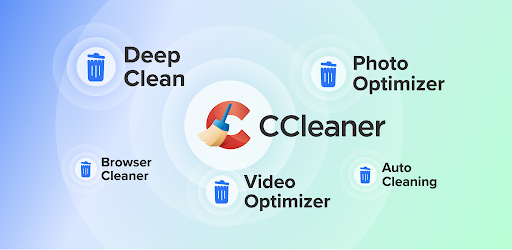
If you are searching for CCleaner Pro APK for Android, this guide explains the app’s main features, premium options, official installation methods, and safety considerations. You will also learn how to clean storage more carefully without accidentally deleting important photos, downloads, or personal files.
CCleaner App Information
| App Name | CCleaner – Phone Cleaner |
|---|---|
| Developer | Piriform |
| Category | Tools and Utilities |
| Platform | Android |
| Package Name | com.piriform.ccleaner |
| Pricing | Free version with ads and in-app purchases |
| Main Purpose | Storage cleanup, app management, photo organization, and system monitoring |
| Official Website | ccleaner.com |
Note: Features, subscriptions, and compatibility can change. Check the official Google Play listing for the latest details. The Android app’s premium offering may be described as CCleaner Android Premium, which is distinct from the company’s desktop subscription plans.
What Is CCleaner Pro APK?
CCleaner is an Android utility designed to help users manage storage and understand how applications affect their devices. It can identify unnecessary files, display information about installed applications, help remove unwanted apps, and provide tools for reviewing photos and monitoring system resources.
The term CCleaner Pro APK is often used by people looking for premium features in an Android installation package. However, downloading an APK from a third-party website does not guarantee that it is genuine, current, or authorized.
The official Android app is available through Google Play, with free functionality and optional in-app purchases. If you want premium features, check the official subscription options rather than relying on modified files that claim to unlock paid features.
Key Features of CCleaner for Android
1. Clean Junk and Unnecessary Files
Over time, your phone may accumulate temporary files, cached data, and other items that are no longer useful. CCleaner helps identify selected categories of unnecessary files so you can review them and reclaim storage space.
Depending on the available permissions and Android version, the app can help you review items such as:
- Temporary and residual files.
- Downloaded files you no longer need.
- Browser history and other supported browser data.
- Application cache and other cleanup suggestions.
- Other removable items identified by the cleaning tools.
Always review what will be removed before confirming a cleanup. Some files that appear unnecessary may still be useful to you.
2. Reclaim Valuable Storage Space
When your phone is almost full, installing apps, downloading files, and updating the operating system can become difficult. CCleaner provides storage analysis tools that help you understand what occupies space on your device.
You can use its available tools to identify large files, review removable data, and find applications you no longer use. Removing unnecessary items can free storage, although it does not automatically guarantee a faster phone.
3. Manage and Uninstall Applications
Installed applications can consume storage and use resources even when you rarely open them. CCleaner’s application-management tools help you review installed apps and identify candidates for removal.
- Review applications installed on your device.
- Identify apps you no longer use.
- Check available information about application resource usage.
- Uninstall supported apps you no longer need.
- Review applications that may consume mobile data or battery power.
Be careful when removing applications. Some are necessary for your phone’s normal operation, and removing or disabling system components may cause unexpected problems.
4. Analyze Your Photo Library
Photos and videos can occupy a substantial amount of storage, particularly when you take many pictures or receive media through messaging apps. CCleaner includes media-management features that help you review your photo library.
Depending on the available version and permissions, the app can help identify:
- Similar or duplicate-looking photos.
- Older pictures you may no longer need.
- Photos that appear too dark, too bright, or out of focus.
- Large media files that take up significant storage space.
Review suggested photos individually before deleting them. Similar images are not always duplicates, and a photo that looks imperfect may still be important to you.
5. Compress Photos to Save Space
Some versions of CCleaner offer photo-compression options that reduce file sizes. Compression can help you retain more pictures on your device without using as much storage.
Different compression levels may balance file size and image quality differently. Stronger compression can reduce image detail, so choose a setting that suits the way you plan to use the photos.
If the app offers an option to move originals to cloud storage, confirm that the transfer has completed and that you can access the backup before removing any local copies.
6. Monitor CPU, RAM, Battery, and Storage
CCleaner provides system-monitoring information that helps you understand how your Android device is being used.
- CPU usage: Review processor activity where supported.
- RAM: Check memory usage information.
- Internal storage: See how much space is available.
- Battery: Review battery-level information.
- Temperature: Check the device temperature information provided by the app.
These readings can help you investigate storage or performance concerns. For example, if your phone becomes hot frequently, you should also check demanding apps, charging conditions, network activity, and the device manufacturer’s guidance.
7. Find Apps That Affect Battery Life
Some applications consume more energy than others, especially when they frequently use location services, synchronize data, or operate in the background.
CCleaner’s application overview can help you review available usage information and identify apps worth investigating. Android’s own battery settings can provide additional information about power consumption.
Do not uninstall an essential app simply because it appears in a usage report. First check whether its background activity is expected and whether its settings can be adjusted.
8. Simple and Accessible Interface
CCleaner organizes its maintenance tools in an interface designed for straightforward navigation. You can review cleanup suggestions, inspect storage, manage applications, and access other supported functions without needing advanced technical knowledge.
The app also offers interface customization options in supported versions, allowing users to choose from available color themes.
CCleaner Free vs. CCleaner Premium
CCleaner offers free Android functionality as well as premium options. The exact differences depend on the current version and subscription. Check the app’s official listing and subscription details before purchasing.
| Feature | Free Version | Premium Options |
|---|---|---|
| Storage cleanup | Available tools | Additional features may be included |
| Advertisements | Contains ads | Ad-free access may be included |
| Application management | Available tools | Check the current plan details |
| Photo cleanup | Supported tools may be available | Features depend on the current offering |
| Additional premium features | May be limited | Depends on subscription and app version |
This table is a general comparison, not a guarantee that every feature is exclusive to Premium. Review the current details in the official app before making a purchase.
How to Download CCleaner Pro APK for Android
For the safest installation, use the official Google Play listing. This helps you obtain the app from the recognized publisher and receive updates through the store.
Official Download Options
Android app: Visit CCleaner – Phone Cleaner on Google Play.
Official product page: Visit CCleaner for Android to explore its features and official download information.
Installation help: Read the official Android installation guide.
How to Install CCleaner on Android
- Open Google Play on your Android phone.
- Search for CCleaner or open its official store listing.
- Check the developer information and available compatibility details.
- Tap Install and wait for the process to finish.
- Open the app and review its terms and permission requests.
- Run a storage analysis and review the suggested cleanup items before removing anything.
- If you want additional features, check the official in-app premium options.
If you are considering a manually installed APK, use only a source you can verify as official. Avoid files advertised as cracked, modded, or premium-unlocked, because their contents and behavior may not be trustworthy.
How to Clean Your Android Phone with CCleaner
Follow these practical steps to use CCleaner without accidentally removing important information.
- Analyze your storage: Open the app and use the available storage or cleaning analysis tool.
- Review the results: Examine the categories and files identified by the app.
- Check downloads: Make sure you no longer need any selected documents, installers, or media files.
- Review photos: Inspect similar or low-quality images before selecting them for removal.
- Manage unused apps: Uninstall applications you recognize and no longer need.
- Confirm cleanup: Remove only the items you have reviewed and approved.
- Check available space: Return to your device’s storage settings to see the updated space usage.
For important files, keep a separate backup before performing large cleanup operations. This is especially important for photos, downloads, and media stored only on your phone.
Is CCleaner Pro APK Safe?
The official CCleaner app is distributed through Google Play. However, an APK downloaded from an unrelated website may be outdated, modified, or bundled with unwanted software.
To reduce the risk of installing an unsafe file:
- Prefer the official Google Play listing or links from CCleaner’s website.
- Avoid modified APKs claiming to unlock paid features without authorization.
- Review permissions and understand why the app requests them.
- Keep Android and your installed applications updated.
- Do not install a file if your device displays a security warning you cannot verify.
- Never provide payment details or account passwords to an unofficial download website.
Understanding Accessibility Permission
CCleaner’s Android app states that it uses Accessibility permission to help users, including people with disabilities, stop background applications with a single tap. Accessibility access can be powerful because it may allow an app to perform actions on the user’s behalf.
Before enabling this permission, read the explanation shown by Android and make sure you understand what the feature does. Grant access only if you want to use the function and trust the application.
If you do not need the accessibility-based feature, you should not enable the permission just to perform ordinary storage cleanup. You can review or revoke accessibility access in Android’s settings, although menu names vary by device.
Does CCleaner Really Make Your Phone Faster?
CCleaner can help free storage space and identify applications or files worth reviewing. These actions may help when your device is running low on storage or contains unnecessary data.
However, a cleaning app cannot guarantee that every phone will become faster. Android already manages memory and background processes, and repeatedly stopping apps can sometimes cause them to restart and use additional resources.
If your phone is slow, consider these steps as well:
- Keep enough free storage for updates and normal operation.
- Uninstall applications you no longer use.
- Restart the device if it has been running continuously for a long time.
- Update Android and your apps where supported.
- Check battery usage and remove unfamiliar applications.
- Back up important data before attempting major troubleshooting.
Privacy Considerations
Storage-cleaning applications may need access to files, photos, application usage information, or device statistics to provide their features. Before using CCleaner, review its permissions and the current privacy information.
CCleaner publishes its General Privacy Policy and Products Policy. These resources explain relevant data practices and product functionality.
When using any cleaning utility, avoid granting unnecessary access to private content. Be particularly careful before deleting photos or transferring originals to cloud storage.
Common CCleaner Problems and Solutions
CCleaner Does Not Free Much Space
The amount of space available for cleanup depends on your device and how you use it. Review large downloads, offline media, and applications you no longer need. Do not expect a cleaner to remove personal files automatically without your approval.
Some Files Cannot Be Removed
Android restricts access to certain files and app data. Some items may require removal through the original app or the device’s own settings. Avoid attempting to bypass system protections.
Battery or Performance Problems Continue
Use Android’s battery and application settings to identify possible causes. High temperatures, weak network coverage, demanding apps, and battery aging can all affect performance.
Premium Features Are Locked
Check your current subscription and the features included with it. If a purchase is not recognized, consult official CCleaner support or Google Play billing support rather than installing a modified APK.
Photo Compression Reduces Quality
Compression can reduce image detail. Use a less aggressive setting when quality matters, and keep original copies of important photos before applying changes.
Frequently Asked Questions
Is CCleaner Pro APK free?
The official Android app offers free features, advertisements, and in-app purchases. Premium functionality may require payment. An unofficial APK claiming to unlock all paid features for free should not be assumed to be genuine or safe.
Where can I download CCleaner for Android?
You can download the official app from Google Play or visit the official CCleaner Android page.
Can CCleaner remove junk files?
Yes. CCleaner identifies selected unnecessary files and cleanup opportunities. Review the results before confirming deletion so you do not remove files you still need.
Can CCleaner delete duplicate or similar photos?
Its photo-management tools can help identify similar, older, or low-quality images in supported versions. Check every suggested photo before deleting it, because similar images may not be exact duplicates.
Does CCleaner improve Android performance?
It can help free storage and identify unnecessary applications or files. Actual performance improvements depend on your device and the cause of the problem, so results are not guaranteed.
Is Accessibility permission required to clean files?
The app describes Accessibility permission as a way to help users stop background apps with one tap. You should review the permission explanation and enable it only if you need the associated feature. Ordinary cleanup options may be available without it.
Can CCleaner delete personal photos?
Photo-management features can help you select images for removal. Review selected items carefully and back up important pictures before confirming deletion.
Is CCleaner Pro for PC the same as CCleaner Premium for Android?
No. CCleaner offers different products and subscription options across platforms. Check the official product details to confirm whether a plan includes Android Premium or only desktop features.
Final Verdict
CCleaner is a practical Android utility for users who want to review storage usage, identify unnecessary files, manage applications, organize photos, and monitor selected system information. Its simple interface makes these maintenance tasks accessible without requiring advanced technical knowledge.
If you are looking for CCleaner Pro APK, start with the official Android app and review the available premium options. Avoid unofficial unlocked versions, carefully check permissions, and always review files before deleting them.
For the latest features, subscription details, and installation instructions, visit CCleaner’s official website or its Google Play listing.
Official Links
- CCleaner – Phone Cleaner on Google Play
- Official CCleaner Android Website
- Android Installation Guide
- Privacy Policy
- Products Policy
EP Apk provides informational app guides and installation advice. CCleaner is a product name associated with its respective owner. This article is not affiliated with or endorsed by CCleaner or Piriform.