Download Pixlr Pro APK
- Updated
- Version 3.4.62
- Size 37.18 Mb
- Requirements Android 9
- Developer Pixlr Pte Ltd
- Genre Pro
- Google Play




If you are searching for Pixlr Pro APK for Android, this guide covers the app’s key features, premium options, official download sources, installation steps, and safety considerations. Before downloading, it is important to understand the difference between the official Pixlr app and unofficial APK files advertised as Pro or unlocked versions.
Pixlr App Information
| App Name | Pixlr AI Photo & Video Editor |
|---|---|
| Also Known As | Pixlr Express |
| Developer | Pixlr Pte Ltd |
| Category | Photography and Photo Editing |
| Platform | Android and other supported platforms |
| Package Name | com.pixlr.express |
| Pricing | Free features with ads and optional in-app purchases |
| Official Website | pixlr.com |
Note: Features, subscription plans, compatibility, and app details can change. Check the official store listing for the latest information. “Pixlr Pro APK” is a search term and does not confirm that a separate official Pro APK exists.
What Is Pixlr Pro APK?
Pixlr is a photo editing platform designed for users who want to improve images without needing complicated professional software. Its tools range from basic adjustments and creative filters to AI-assisted object removal and background editing.
The official mobile application is listed as Pixlr AI Photo & Video Editor on Google Play. Pixlr also offers browser-based editing tools and paid plans that provide access to additional features and resources.
The word “Pro” is commonly used in searches for premium editing capabilities. However, users should not assume that a website offering “Pixlr Pro APK” is distributing an official premium version. Modified or unlocked APK files may be unsafe, and premium access should be obtained through legitimate Pixlr subscriptions.
Key Features of Pixlr Photo Editor
1. AI Generative Fill
AI Generative Fill helps you modify selected areas of an image by generating content to fill or replace parts of the picture. This can be useful when you want to add visual elements, change part of a scene, or experiment with a new composition.
The results depend on the original image, your selection, the instructions you provide, and the AI features available to your account.
2. AI Object Removal
Unwanted objects can distract from an otherwise good photograph. Pixlr’s AI object removal tools help remove selected elements and generate replacement details in the surrounding area.
This feature can be useful for cleaning up backgrounds, improving product photos, or removing small distractions. Complex backgrounds may require additional editing to achieve a natural result.
3. AI Background Removal
Background removal helps separate a subject from its surroundings. It is particularly useful for profile pictures, product photography, promotional graphics, and social media content.
After removing a background, you can use the resulting image in another design or combine it with a different background, depending on the tools and export options available.
4. Creative Filters and Effects
Pixlr includes a variety of effects, overlays, and filters for changing the appearance of your images. You can create different moods, improve colors, experiment with artistic styles, or give ordinary photos a more distinctive look.
- Apply creative color effects and filters.
- Experiment with overlays and artistic treatments.
- Use stylized effects such as sketch-inspired or watercolor-like looks where available.
- Save favorite effects for easier access.
- Combine different effects to develop a personal editing style.
5. Photo Collage Maker
The collage tools let you combine several photos into one composition. You can choose from available layouts, adjust image arrangements, and use different aspect ratios and backgrounds.
Collages are useful for travel memories, family photos, product showcases, and social media posts. Choosing images with complementary colors and consistent lighting can make the final design look more professional.
6. Portrait Retouching
Pixlr provides portrait editing tools that can help improve the appearance of selfies and other photographs. Depending on the version and available tools, these may include blemish correction, red-eye reduction, skin smoothing, and teeth whitening.
For realistic results, apply retouching gradually. Excessive smoothing or whitening can make a portrait look unnatural.
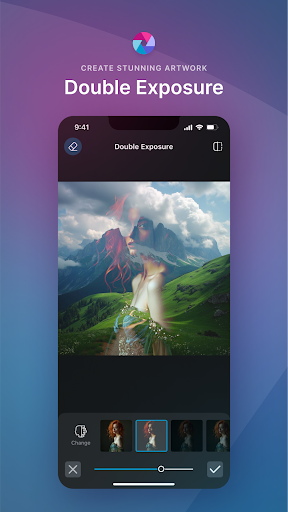
7. Double Exposure and Creative Blending
Double exposure effects combine visual elements to create artistic compositions. Layering and transparency adjustments can help blend images together, making this feature useful for creative portraits, posters, and experimental designs.
Results improve when the source images have compatible lighting, composition, and contrast.
8. Color Splash and Focal Blur
Color Splash helps emphasize selected colors while reducing the prominence of others. Focal Blur can draw attention toward a subject by softening parts of an image.
These tools can help guide the viewer’s attention, particularly in portraits, food photography, and social media graphics.
9. Text, Borders, and Overlays
Pixlr includes creative options for adding text, overlays, and borders to images. These tools can be used to make announcements, simple promotional graphics, quotes, or customized social media posts.
For clear designs, choose readable fonts, keep text brief, and leave enough space around important elements.
10. Crop and Resize Images
Cropping and resizing help prepare images for different purposes, such as profile pictures, social posts, thumbnails, and other digital content.
Before exporting an edited image, check its dimensions and quality. If you plan to use it on a website, choose an appropriate image size to balance clarity and loading speed.
Pixlr Free vs. Premium Features
Pixlr offers free editing options alongside paid plans. The exact features included in each plan can change, so check the current official pricing page before subscribing.
| Feature | Free Access | Paid Plans |
|---|---|---|
| Basic photo editing | Available tools | Available, depending on plan |
| Filters and effects | A selection of tools | Additional resources may be included |
| AI editing | Availability or usage may be limited | Plan-dependent access and credits |
| Ads | May be displayed in the mobile app | Ad-free access may be included in eligible plans |
| Premium resources | Limited selection | More resources may be available |
This comparison is a general guide rather than a guarantee of specific plan benefits. Features, limits, and pricing vary by subscription and can change over time.
For current plan details, visit the official Pixlr website.
How to Download Pixlr APK for Android
The safest way to install Pixlr is through its official Google Play listing. This helps you obtain the application from the publisher and receive updates through the store.
Official Download
Google Play: Visit the official Pixlr AI Photo & Video Editor page and check compatibility with your Android device.
Official website: Visit Pixlr.com to explore its editing tools, mobile app information, and subscription options.
How to Install Pixlr on Android
- Open Google Play on your Android phone.
- Search for Pixlr AI Photo & Video Editor or open the official store link above.
- Confirm the developer information and tap Install if the app is available for your device.
- Wait for the installation to finish.
- Open Pixlr and grant only the permissions needed for the editing tasks you want to perform.
- Import a photo, select an editing tool, and save or export your finished image.
If you choose to install an APK directly, use only a source that you can verify as official. Avoid unofficial “Pro unlocked” files that promise paid features for free, and do not disable security protections to install a suspicious package.
How to Edit a Photo with Pixlr
Getting started with Pixlr is straightforward. You can follow these steps to make a simple edit:
- Choose an image: Open a photo from your device using the available import option.
- Make basic adjustments: Crop the image or improve its color and appearance.
- Apply a filter: Try a few effects and choose one that suits the image.
- Use AI tools if needed: Remove a distracting object or change the background when the feature is available.
- Add finishing touches: Add text, a border, or other design elements if appropriate.
- Preview your work: Check the result at full size before exporting.
- Save the image: Use the available export options and keep a copy of the original if you may want to edit it again.
Is Pixlr Pro APK Safe?
The safety of an APK depends on its source and whether the file has been altered. A file labelled “Pixlr Pro APK” on a third-party website is not automatically official or safe.
Modified applications may contain unwanted code, request excessive permissions, expose personal information, or stop working after an update. They can also put your Pixlr account or device at risk.
For safer use:
- Download Pixlr from Google Play or follow links provided by the official Pixlr website.
- Avoid APKs that promise unlocked subscriptions or unlimited premium access without authorization.
- Review requested permissions before granting access to photos or other information.
- Keep your device’s operating system and security protections updated.
- Never enter your password or payment information on a suspicious website.
- Read the current privacy policy before using AI features with sensitive photographs.
If you need premium features, use the official subscription options rather than relying on an unknown modified APK.
Privacy When Using Pixlr AI Tools
Photo editing can involve personal images, portraits, and other sensitive content. Before uploading photographs to online editing or AI services, review the service’s privacy information and understand how your content may be processed.
Pixlr publishes a Privacy Policy describing its data practices. Read the current policy before using the service, particularly if you plan to edit confidential work, private family photos, or images containing other people.
- Avoid uploading documents that show personal identification or financial details unless necessary.
- Be careful when using face-related AI tools with photographs of other people.
- Check the terms that apply to AI-generated content and uploaded material.
- Keep backup copies of important original photographs.
Common Pixlr Problems and Solutions
Pixlr Is Not Installing
Check whether your device is compatible, whether enough storage is available, and whether your internet connection is stable. If Google Play reports that the app is unavailable or incompatible, follow the official support information rather than downloading an unknown APK.
AI Features Are Unavailable
Some AI tools may require an eligible subscription, credits, a supported device, or a stable internet connection. Check the feature’s availability and your current plan on the official Pixlr website.
The App Is Slow
Close unnecessary applications, free up storage, and restart your device. Large images and demanding AI features may take longer to process, especially on devices with limited resources.
Edited Images Are Not Saving
Check the app’s available photo permissions and ensure your device has sufficient storage. Try exporting the image again and verify that the selected destination is accessible.
Premium Features Are Locked
Review your subscription status and the benefits included in your plan. Avoid unofficial APKs that claim to unlock paid features, because they may create security risks and may not work reliably.
Frequently Asked Questions
Is Pixlr Pro APK free?
The official Pixlr app offers free editing options, but it also includes ads and in-app purchases. Some advanced features and resources may require a paid plan. An APK claiming to unlock all premium features for free should not be assumed to be official.
Where can I download Pixlr for Android?
You can get the official app from Google Play. You can also visit the official Pixlr website for product information.
Does Pixlr support AI photo editing?
Yes. Pixlr offers AI-assisted tools, including features for object removal, background removal, and generative editing. Availability and usage limits depend on the current product and plan.
Can Pixlr remove backgrounds from photos?
Pixlr offers AI background-removal tools that can help separate a subject from its background. Results may vary depending on the image and the tool being used.
Is Pixlr suitable for beginners?
Yes. Its editing interface includes accessible tools for basic adjustments, filters, collages, and other creative tasks. More advanced AI features may take some experimentation to use effectively.
Is a modified Pixlr Pro APK safe?
There is no guarantee that an unofficial modified APK is safe. Such files may contain malicious code or compromise privacy. The safer option is to use the official application and purchase premium access through authorized channels.
Can I use Pixlr on a computer?
Yes. Pixlr offers browser-based photo editing tools through its official website, so you can edit images on supported computers without installing the Android app.
Does Pixlr require a subscription?
Basic editing options are available for free, while certain premium features, additional resources, and ad-free experiences may require a subscription. Check the official website for current plans and terms.
Final Verdict
Pixlr is a flexible photo editor for users who want to improve images, create collages, apply artistic effects, and explore AI-assisted editing. Its combination of traditional editing tools and newer AI features makes it useful for casual photography and social media content.
If you are searching for Pixlr Pro APK, remember that the official Android application is listed as Pixlr AI Photo & Video Editor. Use an official source to install the app, review current premium plans, and avoid modified APKs that claim to unlock paid features.
For the latest app information, subscription details, and online editing tools, visit Pixlr’s official website or its Google Play listing.
Whats News of Pixlr AI Photo & Video Editor
What's New 🎉 - 🎨 New layer management: Organise, select, reorder and manage multiple layers directly from your mobile device. - ✍️ New text styling tools: Customise text with more formatting and styling options. - 🛠️ Bug fixes and performance improvements for a smoother and more reliable editing experience.Official Links
- Pixlr AI Photo & Video Editor on Google Play
- Official Pixlr Website
- Pixlr Online Photo Editor
- Pixlr Privacy Policy
EP Apk provides informational app guides and installation advice. Pixlr is a trademark of its respective owner. This article is not affiliated with or endorsed by Pixlr.