Download Smart Data Transfer: Clone It APK
- Updated
- Version 6.1.0
- Size 25.11 MB
- Requirements Android 7.0
- Developer Wallet Passes Alliance
- Genre Productivity
- Google Play


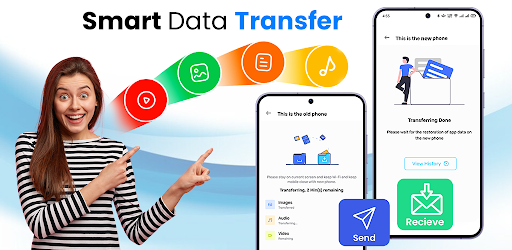
Whether you want to move your entire photo collection or transfer only a few important files, a phone transfer app can help you organize the process. In this guide, you will learn about the main features of Smart Data Transfer: Clone It, how the transfer process works, and what to consider before moving your personal data.
What Is Smart Data Transfer: Clone It?
Smart Data Transfer: Clone It is a phone-to-phone transfer app intended to help Android users move selected files and supported types of personal content from one compatible device to another. Instead of manually searching for and sharing every item, users can select the categories or files they want to transfer through the app’s available connection options.
The app may be useful when setting up a new phone, moving photos and videos, transferring documents, or sharing a collection of files between compatible devices. The available content types and connection methods can depend on the app version, device compatibility, and permissions granted.
Smart Data Transfer: Clone It – App Overview
| App Name | Smart Data Transfer: Clone It |
|---|---|
| App Category | Tools / Data Transfer |
| Platform | Android, subject to compatibility |
| Main Purpose | Moving supported content between phones |
| Supported Content | Photos, videos, contacts, documents, music, and other supported files |
| Connection Methods | Available methods depend on the app and device configuration |
| Price | Check the current app listing for pricing and in-app purchases |
Key Features of Smart Data Transfer: Clone It
1. Transfer Photos and Videos
Photos and videos often contain some of the most important memories stored on a phone. Smart Data Transfer: Clone It is designed to help users select supported gallery media and move it to another compatible device. This can be useful when upgrading a phone or organizing personal media on a new device.
2. Move Contacts and Other Supported Data
Depending on the available features and permissions, the app can help transfer supported contacts and other phone content. Moving compatible data together can make a device change more convenient than handling every item separately.
Keep in mind that not every type of phone data is necessarily transferable. Certain messages, call information, app-specific data, or account details may require separate migration methods.
3. Transfer Documents, Music, and Files
Smart Data Transfer: Clone It can also be useful for moving supported documents, audio files, and other personal files. This is particularly helpful if you keep work documents, downloaded media, or music on your old device.
4. Select Individual Files or Groups
Rather than moving everything, users may be able to select specific items or larger groups of supported content. Selective transfer can save time and help prevent unnecessary files from being copied to a new phone.
5. Connect Compatible Android Devices
The app is intended to facilitate transfers between compatible phones through the connection options it provides. The exact setup process and available connection methods may vary, so follow the instructions displayed in the current app version on both devices.
6. Make Switching Phones More Convenient
When moving to a new Android phone, transferring several types of content can involve many steps. A dedicated transfer tool can bring supported file categories into one workflow, helping users keep track of what they want to move.
How to Use Smart Data Transfer: Clone It
The exact steps can vary according to the app version and the devices being used. The following is a general guide to preparing and transferring supported files.
- Prepare both phones: Charge the old and new devices sufficiently and make sure there is enough free storage on the receiving phone.
- Install the app: Obtain Smart Data Transfer: Clone It from a trusted source and check that it is compatible with your devices.
- Open the app: Follow the on-screen instructions on the devices involved in the transfer.
- Connect the phones: Use the connection method offered by the app. Keep both devices nearby if the instructions require it.
- Select the content: Choose the supported photos, videos, contacts, documents, music, or other files you want to move.
- Review your selection: Check the selected categories and make sure the receiving device has enough available storage.
- Start the transfer: Follow the app’s instructions and keep the devices connected until the process finishes.
- Verify the results: Open the relevant folders or apps on the new phone to confirm that the transferred content is available.
Important: Back up important files before transferring them. Do not erase or reset the old phone until you have checked that the content you need is safely available on the new device.
What Can You Transfer to a New Phone?
| Content Type | Potential Use |
|---|---|
| Photos | Move selected pictures and personal memories |
| Videos | Copy supported video files to another device |
| Contacts | Move supported contact information |
| Documents | Transfer compatible personal or work files |
| Music and Audio | Move supported audio files |
| Other Phone Data | Availability depends on app support, device permissions, and compatibility |
The table describes content categories mentioned in the app description, not a guarantee that every item can be transferred on every device. Check the options shown in the app before starting.
Tips for a Smooth Phone-to-Phone Transfer
- Back up your important files: Keep an additional copy of essential photos, documents, and contacts.
- Check storage space: Make sure the new phone can accommodate the files you plan to move.
- Keep both devices ready: Follow the app’s connection instructions and avoid interrupting the process.
- Review app permissions: Grant only the permissions needed for the features you intend to use.
- Protect your private information: Transfer personal content only between devices you trust.
- Verify sensitive data separately: Banking apps, authentication tools, secure folders, and some messaging apps may require their own migration or recovery process.
Is Smart Data Transfer: Clone It Safe to Use?
Safety depends on the actual app publisher, the version installed, the permissions requested, and how the app handles personal information. Since a phone transfer tool may access private files or contacts, review its permissions and privacy policy before using it.
For a safer installation:
- Check the app’s developer name and current listing in an official app store when available.
- Review recent user feedback and the privacy information supplied by the developer.
- Avoid modified APKs from unknown websites or files that request unrelated permissions.
- Do not disable Android security protections simply to install an unfamiliar file.
- Keep a separate backup of important information before moving data.
Downloading an APK from a third-party website does not automatically establish that it is authentic or safe. Verify the source before installing it, especially when the app will access personal information.
Pros and Cons
Advantages
- Designed for phone-to-phone content transfers
- Supports several useful file categories, according to the supplied description
- Allows users to focus on selected content rather than moving everything
- Can be helpful when setting up a replacement phone
Things to Consider
- Supported content can vary by device and app version
- Some app data may need a separate migration method
- Transfer speed can depend on the files and connection
- Privacy and permissions should be checked before use
Frequently Asked Questions
What is Smart Data Transfer: Clone It used for?
It is designed to help users move supported content, such as photos, videos, contacts, documents, and music, between compatible phones.
Can I transfer photos and videos with this app?
The supplied app description lists photos and videos among the supported content types. Check the app’s current interface and permissions to confirm the options available on your device.
Can I transfer contacts to a new Android phone?
Contact transfer is listed as a feature in the supplied description. Availability may depend on the app version, device compatibility, and the permissions granted.
Does Smart Data Transfer: Clone It transfer every app and its data?
Not necessarily. Moving files is different from migrating an app’s private data, login sessions, or settings. Some apps require their own transfer, backup, or account recovery process.
Do I need to connect both phones?
The described workflow involves the old and new devices. Follow the connection instructions shown in the app and confirm that both phones are compatible.
Can I choose which files to transfer?
The supplied description mentions selecting individual items or groups of content. The available selection options may vary by file type and app version.
Is it safe to download Smart Data Transfer: Clone It APK?
Safety cannot be confirmed from the app name alone. Check the publisher, source, permissions, and privacy policy before installing an APK, and avoid modified files from untrusted websites.
Will the original files disappear from my old phone?
A transfer is generally intended to copy selected content, but the exact behavior depends on the app and operation. Check the source and destination devices before deleting anything.
Final Verdict
Smart Data Transfer: Clone It may be useful for Android users who want a more organized way to move supported photos, videos, contacts, documents, music, and other files between compatible phones. Its selective-transfer approach can help when moving only the content that matters instead of copying everything unnecessarily.
Before using the app, confirm that its current version supports your devices and the data categories you need. Back up important information, review permissions, and verify that your files have arrived successfully before resetting or giving away your old phone.
Whats Mod of Smart Data Transfer: Clone It
Smart Data Transfer: Clone It Mod Info
- Speed Hack
- No Ads
Whats News of Smart Data Transfer: Clone It
Improved data transfer stability & connectivity Faster & smoother performance Minor bug fixesNote: This article is based on the app description provided. Specific compatibility, connection methods, transfer categories, pricing, and security details should be confirmed through the current app listing and developer documentation.
 Show/Hide
Mod info
Show/Hide
Mod info