Download Google Play Games APK

- Updated
- Version 2021.10.30471
- Size 18.22 Mb
- Developer Google LLC
- Genre Entertainment
- Google Play


In this guide from EP Apk, we explain the main features of Google Play Games, how game progress syncing works, which built-in games are available, and how to install the official app safely.
App overview
- App name: Google Play Games
- Developer: Google LLC
- Category: Entertainment and gaming
- Platform: Android
- Package name: com.google.android.play.games
- Price: Free to install; the app contains ads
- Main features: Gamer profile, achievements, supported cloud saves, and game discovery
What Is Google Play Games?
Google Play Games is an Android app designed to make gaming easier to organize. It lets you explore games, create a gamer profile, track achievements, and view your gaming activity in supported titles.
When a compatible game supports Google Play Games, signing in with your Google Account may allow your progress and achievements to be associated with your gaming profile. Depending on the game, this can make it easier to continue playing after changing devices.
Google also offers a separate Google Play Games for PC experience in supported regions and on compatible Windows computers. The PC product is distinct from the Android app, although some gaming profiles and supported game progress can connect across platforms.
Key Features of Google Play Games
1. Discover New Games
Finding your next game is easier when your gaming activity and recommendations are organized in one place. Browse available titles, explore different genres, and check games you have played before.
Availability and recommendations can vary according to your device, region, account, and the games supported by Google Play.
2. Save Your Game Progress
One of the most useful features is the ability to save progress in supported games. When a game supports Google Play Games and cloud saving is enabled, your progress may be linked to your Google Account or gaming profile.
This can help you continue a game on another compatible device without starting over. However, cloud saves are not universal: each game must support the relevant functionality, and some games use their own accounts or saving systems.
Before uninstalling a game or resetting your phone, confirm that its progress has been saved successfully. Do not assume every game automatically backs up all of its data.
3. Create a Gamer Profile
Your Google Play Games profile gives you a gaming identity associated with your Google Account. Depending on the available settings, you can choose a gamer name and profile image to personalize your experience.
A gaming profile can also help organize your achievements and activity across supported games. Profile options and privacy settings may vary depending on your account and age.
4. Unlock Achievements and Earn XP
Some compatible games include achievements that recognize milestones, challenges, or other in-game accomplishments. Completing supported achievements can contribute experience points (XP) to your gaming profile.
Achievements are not available in every game. The challenges, rewards, and progress-tracking features depend on what each game developer has implemented.
5. Play Built-In Google Games
The Google Play Games app includes access to selected built-in games. Depending on availability, these can include familiar casual titles such as:
- Solitaire
- Minesweeper
- Snake
- PAC-MAN
- Cricket
- Whirlybird
Some built-in games can be played offline. Other games, particularly those that require account verification, online multiplayer, or internet-based content, may need a connection.
6. Gameplay Recording and Sharing
The app listing describes gameplay recording features that let users capture and share gaming moments. The available recording options may depend on your Android version, device capabilities, and the game being played.
Check your device’s recording controls before starting a session, and make sure you have enough storage space for video files. If a game does not support the feature, you may need to use your phone’s built-in screen recorder instead.
7. Play Across Supported Devices
Some games support progress synchronization across compatible Android phones, tablets, and Google Play Games for PC. This can be useful if you switch between devices during the day.
Cross-device support is game-specific. You may need to use the same Google Account, sign in to the game, and enable the relevant save or synchronization options. Not every Android game has a PC version or shares progress between platforms.
Does Instant Play Still Work?
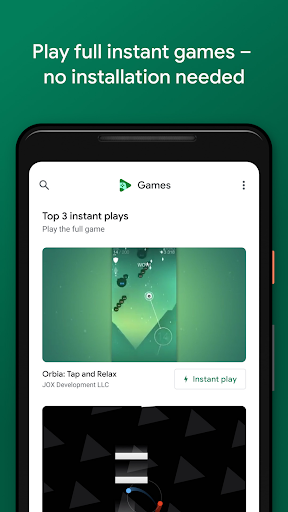
Older descriptions of Google Play Games mention Google Play Instant, a feature that allowed users to try certain games without installing them. However, Google announced that Google Play Instant would no longer be available starting in December 2025.
For that reason, do not rely on older Instant Play instructions when choosing a game in 2026. Check the current listing and available options for each title. A game may now require a standard installation to play.
Google Play Games for Android vs. PC
| Feature | Android app | Google Play Games for PC |
|---|---|---|
| Main purpose | Discover games and manage your gaming profile | Play supported games on a Windows computer |
| Achievements | Available for supported games | Available in supported games |
| Cloud saves | Depend on game support and settings | Cross-device progress is available for supported titles |
| Installation | Install through Google Play on Android | Install the dedicated PC product if your computer meets the requirements |
How to Download Google Play Games APK
The recommended way to install Google Play Games on Android is through the official Google Play Store. This helps you get the version distributed by Google and receive supported updates through the store.
- Open the official Google Play Games listing.
- Check that the developer is Google LLC.
- Tap Install if the app is available for your device.
- Open the app and sign in with your Google Account if prompted.
- Create or configure your gamer profile and review the available privacy settings.
Some Android devices already include Google Play Games or related Google Play services. If you cannot install the app, check device compatibility and whether an update is available.
How to Install an APK File Safely
If you are considering installing an APK from outside Google Play, take extra precautions. A file name alone cannot confirm that an APK is genuine or safe.
- Prefer the official source: Use Google Play whenever possible.
- Check the publisher: Confirm that the app details match the official Google Play listing.
- Review the package: Compare the package name with the official app identity when you can verify it reliably.
- Scan the file: Use a reputable security tool before opening an APK obtained elsewhere.
- Review permissions: Be cautious of permissions that do not make sense for the app’s purpose.
- Keep security protections enabled: Avoid disabling protections permanently just to install an unofficial package.
No scan can guarantee that a file is harmless. If the origin of an APK is uncertain, the official app store is the safer choice.
Common Problems and Troubleshooting
Google Play Games Does Not Sign In
- Check that your internet connection is working.
- Confirm that you are using the intended Google Account.
- Update Google Play Games and Google Play services if updates are available.
- Restart your device and try again.
Game Progress Is Missing
- Confirm that you are signed in with the account used to play the game.
- Check whether the game supports Google Play Games saves.
- Open the game’s own settings to look for cloud-save or account options.
- Contact the game developer if progress remains missing.
Avoid clearing app data or deleting a game until you understand how its progress is saved. Local data may be lost if it has not been backed up.
The App Will Not Install or Update
- Check available device storage.
- Confirm that your Android version is supported.
- Check the Google Play Store for pending updates or error messages.
- Restart your phone and try the installation again.
Advantages and Disadvantages
Advantages
- Provides a central place to manage a gaming profile and achievements.
- Supports cloud saving in compatible games.
- Helps users discover games and revisit titles they have played.
- Offers access to selected built-in casual games.
- Can connect gaming activity across supported devices and titles.
Disadvantages
- Features depend on the game, device, region, and account settings.
- Not all games support achievements or cloud saves.
- Some games still require their own accounts and saving systems.
- The app listing contains ads.
- Older guides may mention Instant Play even though Google Play Instant was discontinued.
Frequently Asked Questions
Is Google Play Games free?
The Android app is free to install and contains ads. Individual games may include paid content, subscriptions, or in-app purchases.
Does Google Play Games save all game progress?
No. Automatic cloud saving depends on whether the game supports it and how its save system is configured. Always check the individual game’s settings before changing devices or uninstalling it.
Can I use Google Play Games on a PC?
Google offers a separate Google Play Games for PC product for compatible Windows computers and supported games. Availability and system requirements should be checked on Google’s official website.
Can I play Google Play Games offline?
Some built-in games, such as Solitaire and PAC-MAN, can be played offline. Other features and games may require an internet connection, especially for sign-in, online play, or synchronization.
Is Google Play Instant still available?
Google announced that Google Play Instant would no longer be available starting in December 2025. Older descriptions of instant game trials may therefore no longer reflect current functionality.
Is it safe to download Google Play Games APK from a third-party website?
Third-party APK files may be outdated, modified, or unsafe. The recommended option is to install Google Play Games directly from the official Google Play Store.
Final Verdict
Google Play Games is a useful companion for Android players who want to organize their gaming identity, track achievements, discover titles, and save progress in supported games. Its value depends on how well the games you play integrate with Google’s gaming services.
For the most reliable experience, install the official app, use the correct Google Account, and confirm that your favorite games support cloud saving before switching devices. If you are searching for Google Play Games APK, start with the official listing rather than an unverified third-party package.
Whats News of Google Play Games
• More built-in mini games are coming soon. Mix it up when you’re offline. • Signing in to games is now automatic. Just pick your account and go. (Yes, you can change that account anytime in settings.)EP Apk tip: Keep your apps updated and check each game’s save options before uninstalling it or moving to a new phone.