Download ProShot APK
- Updated
- Version 8.34
- Size 3.57 Mb
- Requirements Android 10
- Developer Rise Up Games
- Genre Photography
- Google Play


Download ProShot APK for Android
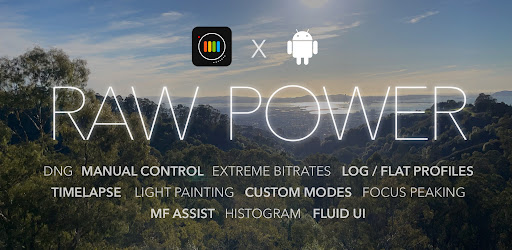
Looking for more control over your Android camera? ProShot APK is a professional camera app designed for users who want more than the standard camera interface. It brings manual exposure settings, ISO adjustments, shutter speed control, RAW photography, advanced video recording, and creative long-exposure tools into one application.
Whether you enjoy mobile photography, record videos for social media, or want to experiment with DSLR-style settings, ProShot gives you a range of tools to explore your phone’s camera capabilities. In this guide from EP Apk, you will learn about ProShot’s main features, supported photo and video formats, compatibility considerations, advantages, and limitations.
Before purchasing or installing the app, it is worth checking whether your device supports the camera features you need. The developer provides a separate tool called ProShot Evaluator to help you inspect your phone’s camera capabilities.
ProShot APK: App Overview
| App name | ProShot |
|---|---|
| Developer | Rise Up Games |
| Category | Photography |
| Platform | Android, with a separate version available for iOS |
| Main purpose | Manual photography and advanced video recording |
| Pricing | Paid app; regional pricing may vary |
| Package name | com.riseupgames.proshot2 |
Compatibility, pricing, and available features may change with future updates. Check the official Google Play listing for the latest information about the Android version.
What Is ProShot APK?
ProShot is a camera application developed by Rise Up Games for people who want greater creative control over photography and video. Instead of relying entirely on automatic processing, it allows users to adjust supported camera parameters manually or combine manual adjustments with automatic exposure.
The application offers several shooting modes, including Auto, Program, Manual, and customizable modes. Depending on your phone’s hardware and software, you can adjust settings such as ISO, shutter speed, focus, white balance, and exposure compensation.
ProShot also includes creative tools for time-lapse recording, light painting, long exposures, and advanced video capture. These features make it particularly interesting for photographers and mobile content creators who want to experiment with settings that are not always available in a phone’s default camera app.
Main Features of ProShot for Android
1. Full Manual Camera Controls
One of ProShot’s main attractions is its collection of manual camera controls. These settings help photographers adjust how an image is captured instead of relying solely on automatic exposure.
- ISO: Adjust the camera sensor’s sensitivity to light where supported.
- Shutter speed: Control exposure duration to capture movement or create motion effects.
- White balance: Adjust color temperature to suit different lighting conditions.
- Focus: Use supported manual focus controls to fine-tune sharpness.
- Exposure compensation: Make supported adjustments to image brightness.
- Flash and torch: Control available lighting options.
Manual settings are especially useful in challenging lighting conditions. For example, a photographer might use a lower ISO to reduce visible noise in a well-lit scene or adjust shutter speed to create a motion effect. The best settings depend on the subject, lighting, and camera hardware.
2. Auto, Program, Manual, and Custom Modes
ProShot is not limited to experienced photographers. Its different shooting modes let users choose how much control they want over the camera.
- Auto mode: Lets the application manage the main exposure settings.
- Program mode: Provides a balance between automatic exposure and selected manual adjustments.
- Manual mode: Allows direct control over supported exposure parameters.
- Custom modes: Let you save preferred camera settings for repeated use.
These options make it easier to move from casual photography to more deliberate shooting without changing applications.
3. RAW Photography and JPEG Support
ProShot supports several photo formats on compatible devices, including JPEG and RAW in DNG format. Some configurations also support saving RAW and JPEG files together.
JPEG is convenient for everyday sharing because files are usually compact and ready to use. RAW files preserve more image data for supported editing workflows, making them useful when adjusting exposure, highlights, shadows, and white balance later.
- Capture JPEG images for convenient sharing.
- Use DNG RAW files for compatible editing applications.
- Save RAW and JPEG together where supported.
- Use HEIC capture on compatible devices.
RAW support depends on the phone’s camera hardware and software implementation. Having a RAW option in an application does not guarantee that every camera lens on your device will support it.
4. Light Painting and Long Exposure
ProShot includes creative shooting modes for capturing light trails, moving water, and star trails. Its Light Painting tools include a Bulb-style mode designed for longer exposures on supported devices.
These modes can help create artistic effects that are difficult to achieve with ordinary automatic photography.
- Light trails: Capture the movement of lights over time.
- Water effects: Create a smoother appearance in moving water when conditions and settings allow.
- Star trails: Experiment with long exposures of the night sky.
- Bulb mode: Explore extended exposure techniques supported by the app and device.
A tripod or another stable support is strongly recommended for long-exposure photography. Movement during an exposure can produce unwanted blur.
5. Time-Lapse Photography and Video
The time-lapse features let you capture a sequence of images or create a video showing changes over a longer period in a shorter presentation. This is useful for sunsets, clouds, traffic, construction projects, and other scenes that change gradually.
ProShot offers an intervalometer-style workflow and time-lapse video tools, with supported camera controls available according to the selected mode and device.
- Capture scenes at selected intervals.
- Create time-lapse videos on supported configurations.
- Adjust available exposure and camera settings.
- Experiment with different shooting durations and intervals.
For consistent results, keep the phone stable and consider using a fixed exposure and white balance when changing lighting conditions could otherwise create noticeable flicker.
6. Advanced Video Recording
ProShot includes a range of video controls designed for users who want more flexibility than a basic recording interface. Supported options include resolution, frame rate, bitrate, audio settings, and color profiles.
- Video recording with supported manual camera controls.
- Adjustable frame rates, depending on the device.
- H.264 and H.265 encoding options where supported.
- LOG and FLAT color profiles on compatible configurations.
- Time-lapse video recording.
- External microphone support on compatible devices.
- Audio-level and estimated file-size monitoring.
- Pause and resume recording where available.
- Video light and supported audio-routing options.
These controls can be useful for filming interviews, short videos, travel clips, and social media content. However, video quality depends on more than the app: sensor performance, stabilization, processing, lighting, storage speed, and microphone quality all matter.
7. High-Resolution Video and High Frame Rates
ProShot advertises advanced video capabilities, including resolutions up to 8K and frame rates that can reach 240 FPS on supported configurations. These are maximum advertised capabilities, not settings that every Android phone can use.
The actual options available to you depend on the camera sensor, Android implementation, available processing power, and the specific lens being used. Some manufacturers also restrict third-party applications from accessing certain resolutions or frame rates.
Before choosing ProShot for a particular recording project, check the supported output modes on your phone. A high-resolution setting is only useful when your device can capture it reliably and the resulting files fit your storage and editing workflow.
8. Focus Peaking and Manual Focus Assistance
Manual focus can be useful for close-up photography, low-light scenes, and video recordings where you want to control exactly which part of the scene appears sharp.
ProShot offers focus assistance tools, including focus peaking on supported configurations. Focus peaking highlights areas that appear in focus, making manual adjustments easier to judge on the screen.
The result still depends on the lens, subject distance, lighting, and the accuracy of the camera preview. Focus peaking is a guide rather than a guarantee that every highlighted detail will appear perfectly sharp in the final image.
9. Histogram and Exposure Monitoring
A histogram provides a visual representation of the distribution of brightness in an image. It can help you identify whether a scene contains large areas of deep shadows or bright highlights.
ProShot includes histogram tools and exposure-related controls that can assist with more consistent photography. These features are especially helpful when shooting in difficult lighting conditions or when preparing images for editing.
10. Customizable Interface and Camera Controls
ProShot uses a camera interface designed around quick access to shooting modes and settings. Its Dual Dial system helps users switch between camera modes and drive modes without navigating through numerous separate menus.
Additional customization options can include remapping supported buttons, adjusting the interface accent color, selecting a startup mode, changing file naming preferences, and configuring storage options.
These tools can make the application more convenient for users who regularly switch between photography styles.
11. Privacy and Data Considerations
The developer promotes ProShot as a privacy-focused camera application. The Google Play listing includes developer-provided data safety information, but users should remember that such declarations describe the developer’s stated practices and may change over time.
Before installing any camera application, review its current permissions, privacy policy, and data safety information. Camera and microphone access are necessary for relevant features, while location access may be optional for geotagging photographs.
For additional information about how the application works, the developer’s Android guide explains the camera interface, available modes, settings, and device-specific limitations.
ProShot Evaluator: Check Your Phone Beforehand
One of the most useful steps before purchasing ProShot is checking which camera capabilities your Android device exposes to third-party applications.
Rise Up Games provides a separate app called ProShot Evaluator. It reports supported camera features, such as available lenses, RAW capture, manual focus, ISO, shutter speed, white balance, and selected video formats. It also allows you to preview the organization of ProShot’s interface.
This is especially helpful if you are interested in a specific feature, such as RAW photography, manual shutter speed, or high-frame-rate video. Checking compatibility first can help you avoid paying for an app that does not support the camera workflow you expected.
You can find the official tool here: ProShot Evaluator on Google Play.
ProShot vs. the Default Android Camera
The best choice depends on your phone and how you take pictures. A manufacturer’s camera app may benefit from proprietary image processing and hardware integrations, while ProShot focuses on manual controls and a customizable shooting interface.
| Feature | ProShot | Default camera |
|---|---|---|
| Manual controls | Extensive controls on supported devices | Varies by manufacturer and model |
| RAW photography | Supported on compatible cameras | Available on selected devices and modes |
| Creative long exposures | Dedicated Light Painting tools | Depends on available modes |
| Advanced video settings | Multiple controls where supported | Varies by device |
| Manufacturer-specific processing | Depends on exposed camera APIs and extensions | May provide deeper hardware integration |
Neither option is automatically better for every situation. Compare image quality, focusing speed, stabilization, available lenses, and supported video modes on your own phone before deciding which application suits you.
Advantages and Disadvantages of ProShot
Advantages
- Offers manual controls for photography enthusiasts.
- Supports RAW and JPEG workflows on compatible devices.
- Includes creative Light Painting and time-lapse modes.
- Provides a range of advanced video settings.
- Includes focus assistance and histogram tools.
- Offers customizable shooting modes and interface settings.
- Has an official Evaluator tool for checking device capabilities.
Disadvantages
- The application is paid, and regional pricing may vary.
- Some advanced features are unavailable on certain phones.
- The interface may take time to learn if you are new to manual photography.
- Third-party camera apps may not access every manufacturer-specific feature.
- High-resolution and high-frame-rate video can require substantial storage and processing power.
- Image quality may differ from the manufacturer’s default camera app.
How to Get ProShot on Android
The recommended way to install ProShot is through its official Google Play listing. This helps ensure that you obtain the developer’s published application and receive updates through the store.
- Open Google Play Store on your Android phone.
- Search for ProShot by Rise Up Games.
- Verify the developer name and application details.
- Check the listed price and compatibility with your device.
- Install the application and review its requested permissions.
- Open ProShot and test the available camera modes.
- If you are unsure about compatibility, use ProShot Evaluator before purchasing.
If you are researching a ProShot APK file from a third-party website, verify its source and authenticity before installing it. An APK file is not automatically safe simply because it uses the correct application name. Avoid modified packages from unknown publishers and never disable security protections without a clear reason.
Tips for Getting Better Results with ProShot
- Start with Auto mode: Learn the interface before changing several settings at once.
- Experiment with ISO: Use lower ISO values when lighting permits to help reduce image noise.
- Use a stable support: A tripod can improve long-exposure photographs and time-lapse recordings.
- Check focus carefully: Use focus assistance when working with manual focus.
- Monitor exposure: Review the histogram and highlights when shooting in challenging light.
- Choose the right format: Use JPEG for convenience and RAW when you plan to edit compatible files.
- Test video settings first: Record a short sample to check quality, audio, frame rate, and storage requirements.
- Check lens compatibility: Some phones restrict access to secondary cameras in third-party applications.
Official ProShot Resources
For the most accurate information about compatibility, controls, and supported features, consult the developer’s own resources rather than relying entirely on third-party APK descriptions.
Official Android Guide
Learn how to use ProShot’s camera modes, manual controls, focus tools, video settings, and other features directly from Rise Up Games.
You can also review the official application listing on Google Play for current pricing, updates, and device compatibility information.
At EP Apk, we aim to help Android users understand an application’s real capabilities before installing or purchasing it. Checking the developer’s documentation and testing your device’s camera support can help you make a more informed decision.
Frequently Asked Questions (FAQ)
What is ProShot APK?
ProShot is a camera application for Android that provides manual photography controls, RAW capture on compatible devices, creative exposure modes, and advanced video recording tools.
Is ProShot free to use?
The main ProShot Android application is a paid app on Google Play, although pricing may vary by region or promotion. ProShot Evaluator is available separately as a free compatibility-checking tool.
Does ProShot support RAW photography?
Yes. ProShot supports RAW capture in DNG format on compatible devices. Availability depends on the camera hardware and the features exposed by the device’s software.
Can ProShot record 8K videos?
The app advertises video recording up to 8K on supported configurations. The actual resolution options depend on your phone, camera hardware, and available recording modes.
Does ProShot support 120 FPS or 240 FPS?
ProShot offers high-frame-rate options on compatible devices, with advertised support reaching 240 FPS in certain configurations. Not every phone or resolution supports these frame rates.
What is ProShot Evaluator used for?
ProShot Evaluator checks which camera features your phone exposes to the application. It can report information about supported lenses, RAW capture, manual controls, and video formats, helping you check compatibility before purchasing ProShot.
Is ProShot better than the default camera app?
It depends on your phone and photography needs. ProShot offers extensive manual controls and creative tools, while the default camera app may have better access to manufacturer-specific processing. Testing both applications is the best way to compare results.
Does ProShot work on every Android phone?
Compatibility and feature support vary between devices. Even if the application installs successfully, certain camera lenses, resolutions, frame rates, or manual controls may not be available.
Can ProShot replace a DSLR camera?
ProShot can provide manual controls and creative shooting options similar to some DSLR workflows, but it cannot change the physical limitations of a phone’s sensor, lens, or optics. It is a useful mobile photography tool rather than a complete replacement for every dedicated camera.
Is it safe to install ProShot from an APK website?
Safety depends on the file’s origin and integrity. The official Google Play listing is the recommended source. Avoid unknown or modified APK packages because they may contain altered code or create security risks.
Where can I find the official ProShot guide?
You can read the developer’s official ProShot Android guide for instructions on camera modes, manual controls, focus, and video recording.
Final Verdict
ProShot is a feature-rich camera app for Android users who want more control over their photography and video recording. Its manual exposure settings, RAW support, creative long-exposure modes, time-lapse tools, and advanced video options make it worth considering for photography enthusiasts and content creators.
However, the app’s full potential depends on the phone’s camera hardware and software. Before purchasing it, use ProShot Evaluator to check which features your device supports, then compare the available controls with your default camera app.
If you want a more hands-on mobile photography experience, ProShot may be a suitable option. For the most reliable installation and current feature information, consult the official developer resources referenced in this guide.
Whats News of ProShot
• Added "External" option to Audio Routing to force external mic use • Added zoom support for gimbals • Added zoom remap option for volume buttons • Added 0.5s interval to Timelapse Video mode • Fixed a bug that sometimes caused a blank screen to appear when relaunching the app (apologies it took so long to track this down!)Note: Features, pricing, compatibility, and maximum recording specifications may change with future updates. Verify current details with the developer before making a purchase.